Configure Android device VPN
Related Video: VPN Configuration: Android
Prerequisite: An admin will need to enable App Management for Android before a VPN app can be configured. Enroll in App Management for Android. See Enrolling Android devices.
To configure VPN for an Android device, a third party VPN app is required.
Add apps to device
- Select the Devices tab in top navigation.
- Select one or more device names from the list.
- In the right panel, choose Apps.
- Click +Add.
There are four ways to add new VPN apps:
Apps from Library
- Select App From Library.
- Select one or more VPN apps from the App Library list.
- Click Install on Device.
Play Store apps
- Select Play Store App.
- Search for a VPN app by keyword or store URL.
- Click one or more apps, then click Select.
- Click Configure selected app.
Both free App Store apps and internal (enterprise) apps are supported for iOS and Android devices.
Uploaded apps
- Select Uploaded App(s).
- Browse or drag and drop VPN App Package Files.
- Click Upload and Install on Device.
Web apps
- Select Web Apps.
- Name Web App, add URL, upload icon, and choose display mode.
- Click Add Web App.
Edit app settings
- Select the Libraries tab in top navigation.
- Click the VPN icon.
- Select an Android VPN app from the list.
- In right panel, click Edit Settings.
- Make updates to any available fields.
- Click Save.
Remove apps from devices
- Select the Devices tab in top navigation.
- Select one or more devices from the list.
- Select Apps in the right panel.
- Select one or more VPN apps to remove.
- Click Remove, then Confirm.
Add new app to Library
- Select the Libraries tab in top navigation.
- Click the Apps icon.
- Click +Add.
There are several ways to add new apps:
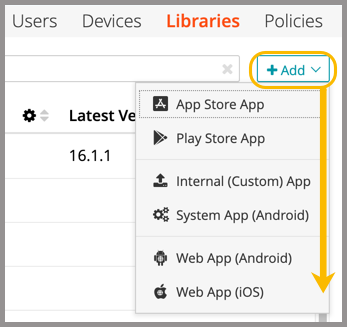
App Store (Apple) or Play Store (Android)
- Click +Add.
- Choose App Store or Play Store.
- Search for and select app(s).
- Click Add (Apple) or Configure selected apps (Android).
You can also check a box to Automatically keep these apps up to date.
Uploaded apps
- Click +Add.
- Select Uploaded App(s).
Uploaded Apps refers to internal custom apps that have been created or approved by your company.
- Browse or drag and drop App Package files.
- Click Add.
Remove apps from Library
- Select the Libraries tab in top navigation.
- Click the Apps icon.
- Select the VPN app from the library list.
- Click Remove, then Confirm.
This action will remove apps from the library, but the apps will remain installed on any device where they were previously deployed.
View devices with specific app installed
- Select the Libraries tab in top navigation.
- Click the Apps icon.
- Select the VPN app from the library list.
- In the right panel, click View Devices.